Windows Folder Permission of Export Path
When changing the export path to a folder in Windows, you might encounter permission issues that prevent the application from saving files to the selected location. Windows defender may enable restrictions on certain folders for security reasons for security reasons.
You may see following Windows Security notification when trying setting the export path:
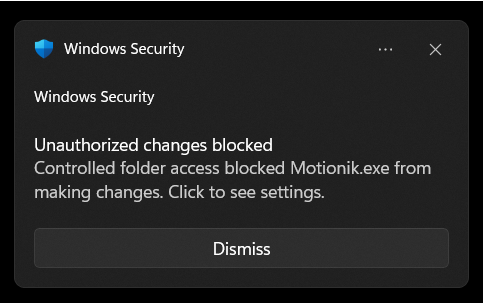
To resolve this, follow these steps to grant the necessary permissions:
- Open Windows Security by clicking on the Start menu and searching for "Windows Security."
- From the left-hand menu, select "Virus & threat protection."
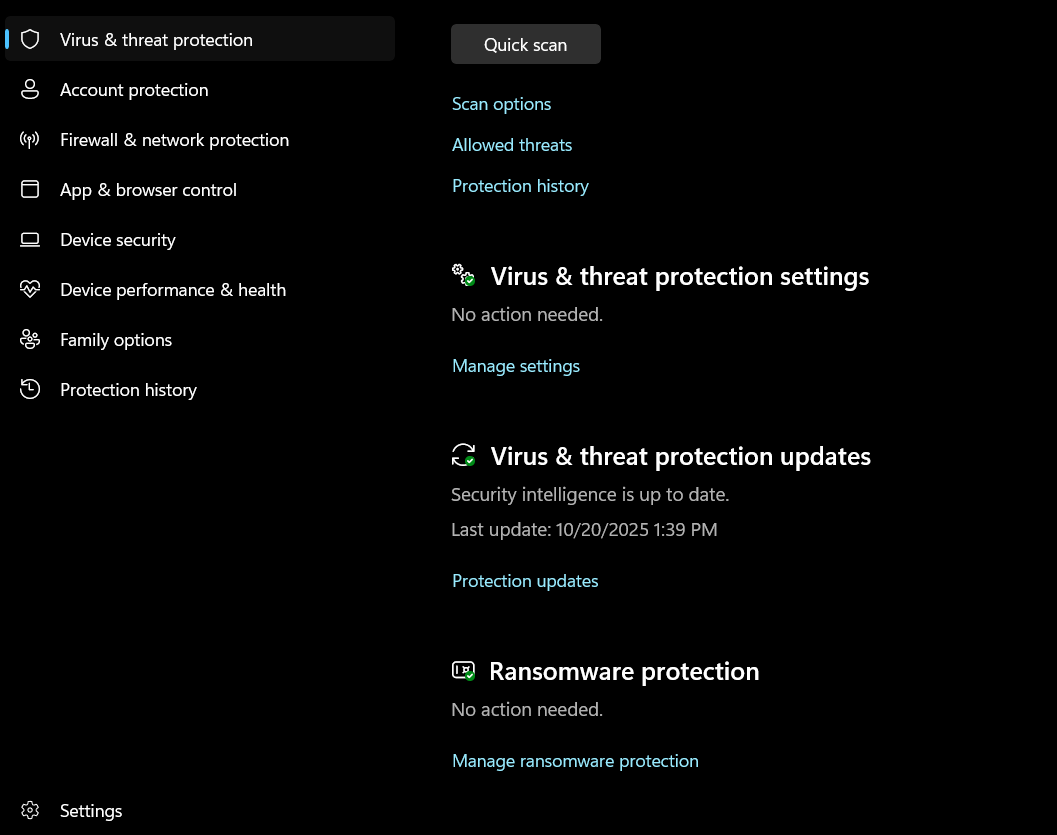
- Scroll down to the "Ransomware protection" section and click on "Manage ransomware protection."
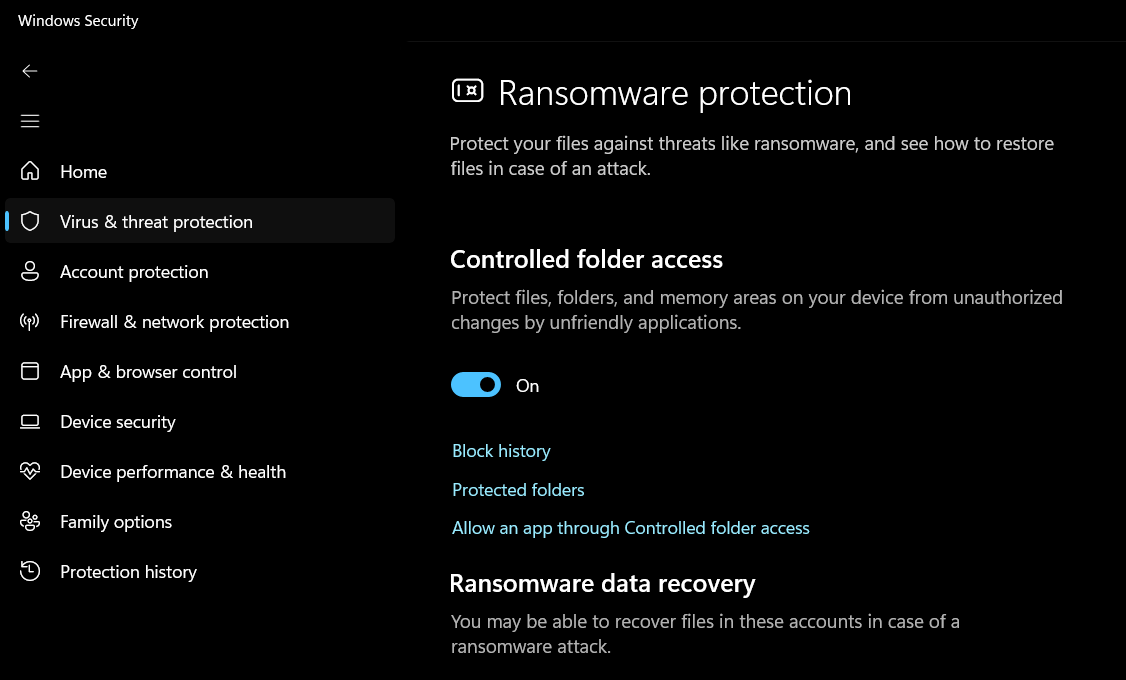
- Either turn off "Controlled folder access" or click on "Protect folders" to remove the folder you want to set as the export path from the protected list.
Note: Setting "Allow an app through Controlled folder access" may not work as expected for Motionik, so it's recommended to remove the folder from protection instead or turn off the feature if you frequently change export paths.